Remote display control

Blank the screen.
Keep control.

Blackscreen is a desktop client for operators who need to lock down a workstation display, input, and messaging — quietly, from a single panel.

Features

Every capability in the client, shown as it appears on the workstation.

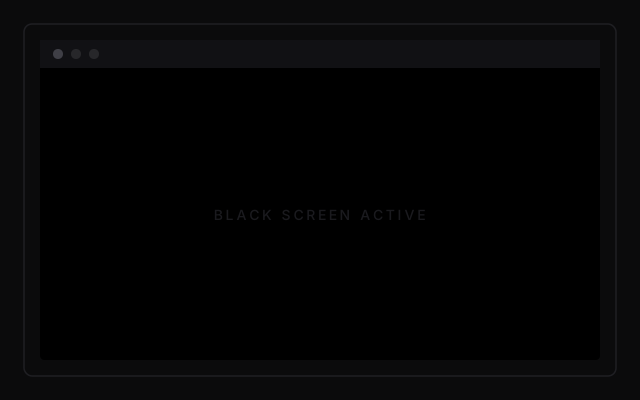
Black screen overlay across all monitors

Black screen overlay

A borderless, always-on-top layer covers every connected display. No window chrome, no taskbar bleed-through — a clean black field across the full desktop.

  • Multi-monitor support
  • Optional Dock / taskbar concealment
  • Instant activation from the dashboard or API
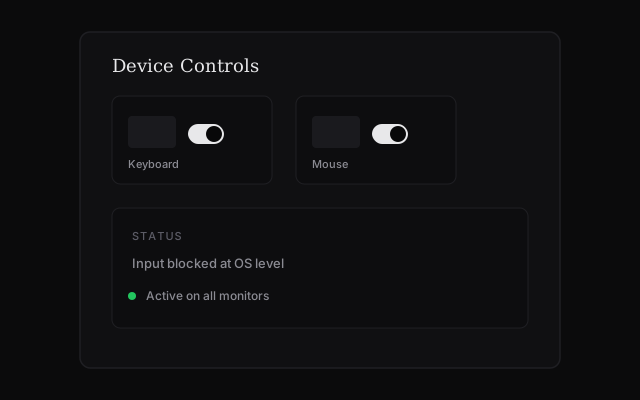
Keyboard and mouse lock controls

Keyboard & mouse lock

Block input at the operating system level while the screen is active. Operators toggle keyboard and pointer independently from the device dashboard.

  • Native hooks on macOS and Windows
  • Separate keyboard / mouse controls
  • Status reflected in real time
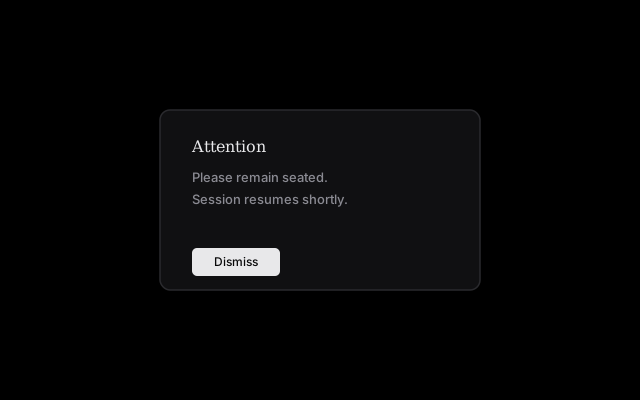
Message overlay on black screen

Message overlay

Push a titled message over the black screen — instructions, warnings, or hold notices — without lifting the overlay or unlocking input.

  • Custom title and body text
  • Centered modal over the black field
  • Triggered locally or via remote command
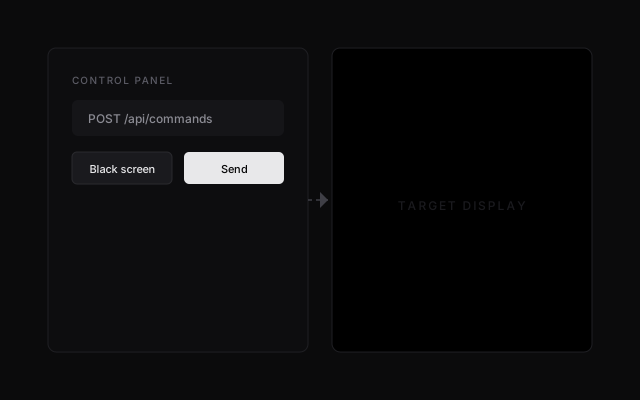
Remote command panel and target display

Remote commands

Your backend sends commands over HTTPS to change device state — black screen, input lock, and messages — without touching the machine directly.

  • REST API with JWT authentication
  • Device status polling endpoint
  • Designed for integration with existing ops tools
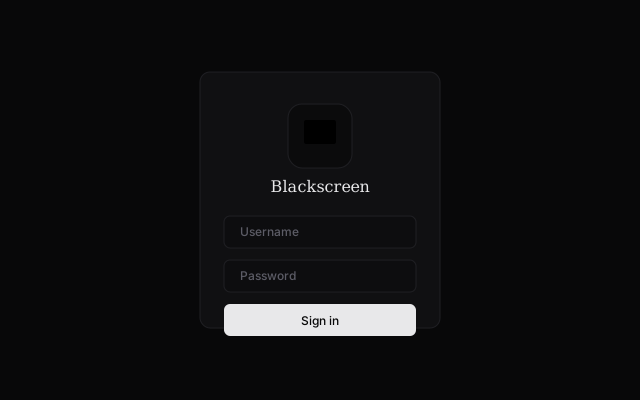
Secure login screen

Secure sessions

Operators sign in through the client. Tokens are stored in the OS keychain — never written to disk in plain text — with automatic refresh and logout on failure.

  • JWT access and refresh tokens
  • macOS Keychain / Windows Credential Manager
  • Remember login option
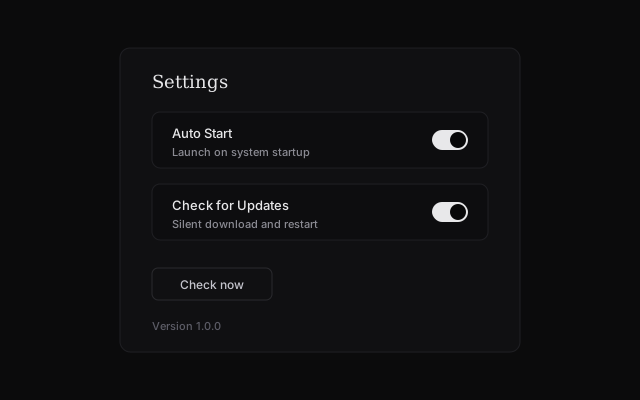
Auto start and update settings

Auto start & silent updates

Managed machines stay ready. Launch on boot, check for updates on startup, and install new versions without interrupting the operator workflow.

  • System startup registration
  • Passive update installation
  • Signed release artifacts

Use cases

Environments where the display must be controlled, not just observed.

Control rooms

Blank auxiliary displays during sensitive briefings while keeping the operator station under central command.

Exam & assessment centres

Lock candidate screens between sessions, push instructions, and block input without physically attending each desk.

Kiosk & public terminals

Take a shared machine offline visually during maintenance or content rotation — input blocked, screen dark.

Remote support desks

Guide a user through a fix while their screen shows only what you want them to see.

Training labs

Pause a class uniformly — one command, every monitor, every keyboard — then resume when ready.

Security operations

Reduce shoulder-surfing and unauthorised interaction on workstations handling restricted material.

Pricing

Per-seat licensing for teams that manage remote displays. Volume discounts available.

Starter

$9/seat/mo

Up to 25 managed devices

  • Black screen & input lock
  • Message overlay
  • API access

Enterprise

Custom

250+ devices or on-premise

  • Dedicated infrastructure
  • SLA & audit logs
  • On-site deployment

Download

Install the desktop client on the machine you intend to manage.

Latest release: v1.1.3

After installing, open About in the app and confirm it shows v1.1.3.

Windows

Do not double-click the .exe inside the ZIP. Right-click the ZIP → Extract All → open the extracted folder → run Blackscreen_v1.1.3.exe or Run-Blackscreen.bat.

If SmartScreen appears, click More info → Run anyway. If the app does not open, end all Black Screen Controller tasks in Task Manager and try again from the extracted folder.

macOS

Apple Silicon build. If macOS says the app is “damaged”, open Terminal and run:

xattr -cr "/Applications/Black Screen Controller.app"

Or right-click the app → OpenOpen again.

Download .dmg